AI Assistant
Interactive AI, banner optimization, classification, policy drafts, and compliance audits.
Overview
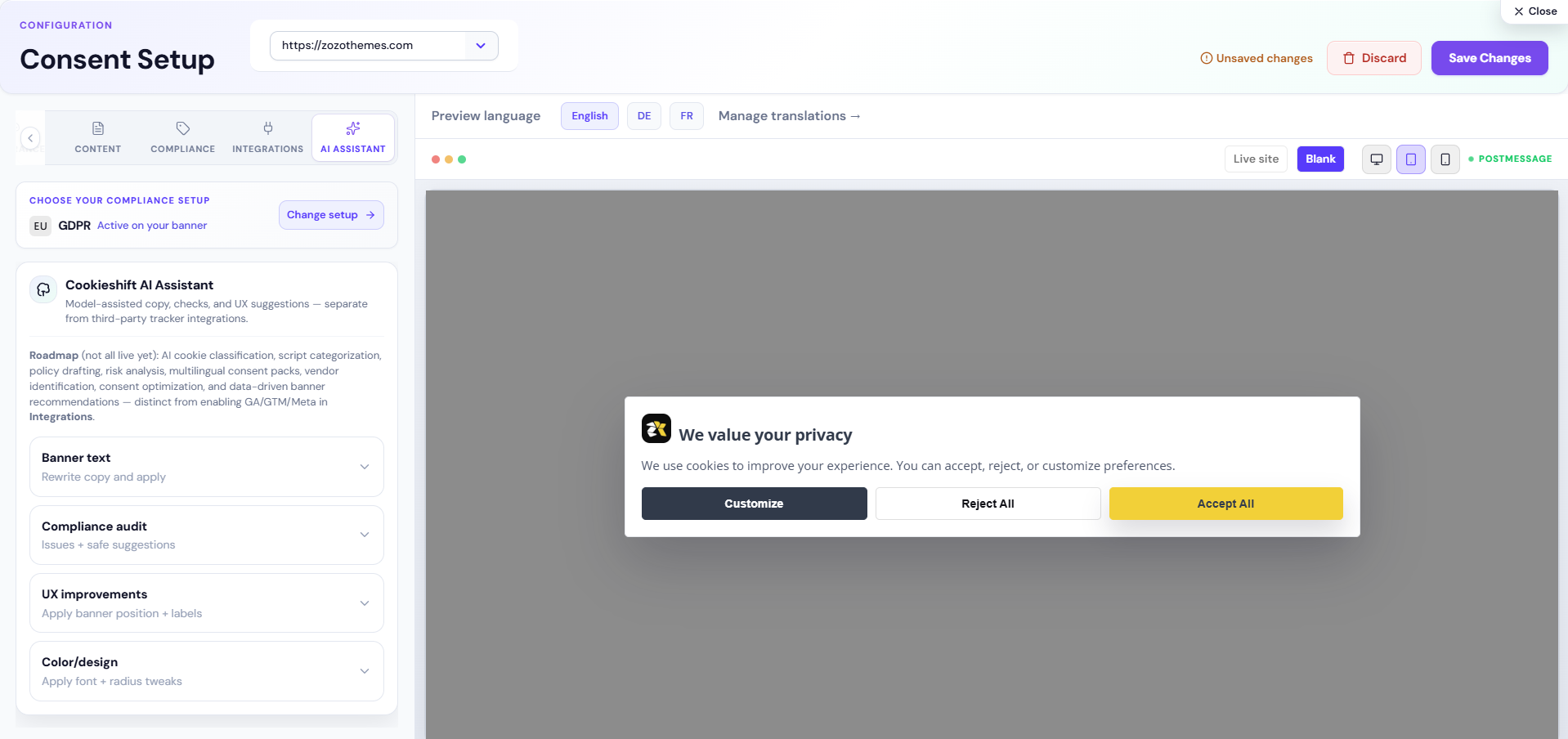
CookieShift’s AI Assistant helps you write clearer banner copy, classify unknown cookies, draft policy text, and spot compliance gaps. You can use it from AI Assistant in the sidebar, or from the AI Assistant tab inside Consent Setup.
You do not need to be a developer. Pick your website in the header, run a scan first, then ask the assistant for suggestions. Always review AI output before you save or publish.
When to use it
- Your banner text feels too long or too legalistic
- Scanner shows many Unclassified cookies
- You need a first draft of cookie-policy language
- You want a quick pre-check before a legal review
Setup
- Select your website in the header.
- Run a Scanner crawl and wait until it finishes.
- Confirm AI is available on your plan (AI Settings).
- Open AI Assistant (or Consent Setup → AI Assistant).
- Choose a task: banner text, classification, policy draft, or compliance audit.
- Review the suggestions, then apply or copy only what you approve.
Examples
| Task | Tool |
|---|---|
| Shorten banner headline | Interactive chat or Banner Text Optimizer |
| Classify 50 unknown scripts | Auto-Classification after full scan |
| Draft cookie policy section | Policy Generator |
| Pre-audit before legal review | Smart Compliance Audit |
| Quick copy tweak in editor | Consent Setup → AI tab (same capabilities) |
Troubleshooting
| Issue | Resolution |
|---|---|
| Tools disabled | Complete Scanner first |
| Provider config invalid | Repair in AI Settings |
| Quota exceeded | Upgrade Billing or add BYOK |
| No property selected | Choose property in header |
| Unexpected classifications | Human-review; override in Scanner inventory |
Best practices
- Run one full scan before batch classification.
- Human-review all banner and policy strings before publish.
- Export compliance reports before regulatory deadlines.
- Monitor AI Usage during migrations.
- Confirm privacy toggles in AI Settings match your DPA.
Detailed reference
Prerequisites
| Requirement | Why |
|---|---|
| Property selected | All calls scoped to siteId |
| Completed scan | Tools disabled until inventory exists |
| AI enabled on plan | Quota on AI Usage |
Warning banner links to Scanner when scan missing.
Modes
| Mode | Status |
|---|---|
| Interactive | Live chat + tools |
| Automations | Placeholder “coming soon” |
Interactive chat
| Element | Behavior |
|---|---|
| Hero prompt | Free-text question |
| SEND | Posts to assistant API with thread context |
| Suggestion pills | Prefill prompt (rewrite banner, fix audit, export PDF hint) |
| Powered by Gemini badge | Indicates default provider |
| Recent threads | Client-side history; Clear / Load more |
Disclaimer may append to replies—treat as non-binding guidance.
Tool panels
Banner Text Optimizer
| Control | Effect |
|---|---|
| Tone | professional / friendly / minimal |
| Region | EU / US / GLOBAL |
| Generate | Returns JSON copy fields |
| Apply / Discard | Merge or ignore |
Uses /ai/generate after scan ready.
Auto-Classification
Loads classified cookie list from scan (/cookies/classified/...). Review against Scanner inventory before bulk trust.
Policy Generator
| Input | Output |
|---|---|
| Region | Draft policy sections (truncated preview in UI) |
Smart Compliance Audit
Runs baseline + AI layer against saved config:
- GET compliance baseline
- POST AI compliance with config payload
- Displays combined JSON results
Use with Compliance exports for audits.
AI tab inside Consent Setup
Same four shortcuts (generate text, improve compliance, UX, colors) without leaving banner editor—see Consent Setup.
FAQ
Does chat train on my data?
Depends on deployment and AI Settings privacy toggles—confirm in your DPA and AI Settings (anonymize / zero-retention).
Can I switch models?
Yes in AI Settings—primary/secondary models apply to new requests.