Shopify Integration
Connect your Shopify store to CookieShift via OAuth and deploy consent on your storefront.
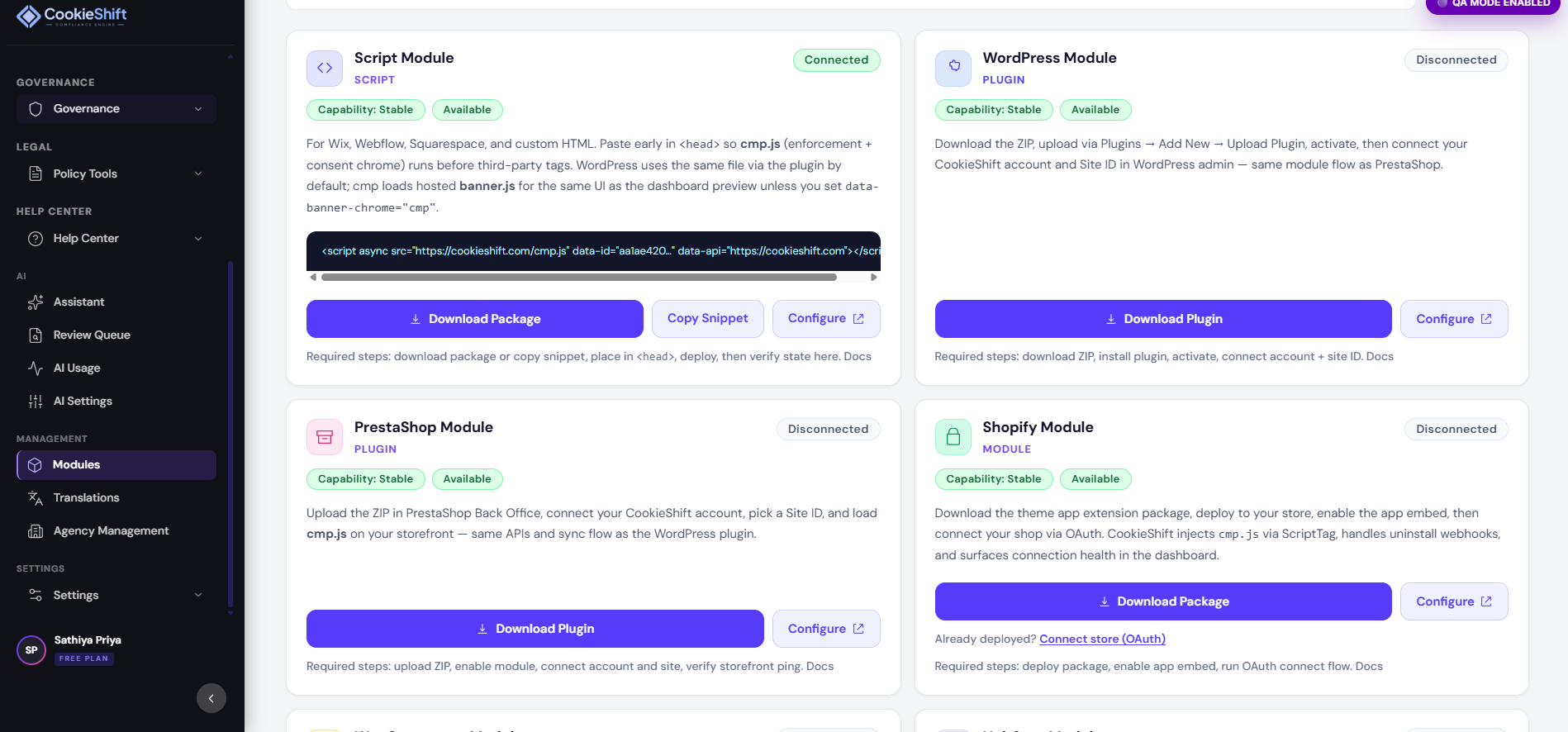
Connect Shopify from Modules so CookieShift can inject consent on your storefront and link scan data to the correct property.
Prerequisites
- CookieShift account with a property for your store
- Shopify store admin access
- Store domain on the property should be
yourstore.myshopify.comwhen possible (improves OAuth matching)
Connection workflow
- Select your property in the dashboard header.
- Open Modules.
- Find the Shopify card.
- Click Connect Shopify (or equivalent).
- Approve the app in Shopify Admin.
- You return to Modules with
shopify_connected=1in the URL—status should show connected.
After connection
| Task | Where |
|---|---|
| Configure banner | Consent Setup |
| Run inventory crawl | Scanner |
| Review compliance | Compliance |
| Monitor consent | Dashboard / Consent logs |
Troubleshooting
OAuth error or shopify_error in URL
Ensure the property domain matches the Shopify shop. Disconnect and reconnect with the correct property selected. Check you are store owner or have app install permissions.
Connected but no banner on storefront
Save Consent Setup, clear Shopify theme cache, and confirm the app embed is enabled in Online Store → Themes → Customize if your theme requires app blocks.
Wrong property linked
Disconnect in Shopify app settings, switch property in CookieShift header, reconnect OAuth from Modules.
Best practices
- Use a production property for the live storefront; staging shop on a separate property.
- Rescan after installing marketing apps from the Shopify App Store.
- Document consent exports before peak sales seasons (BFCM audits).