Websites
Add domains, view scan health, open property details, and manage your site portfolio.
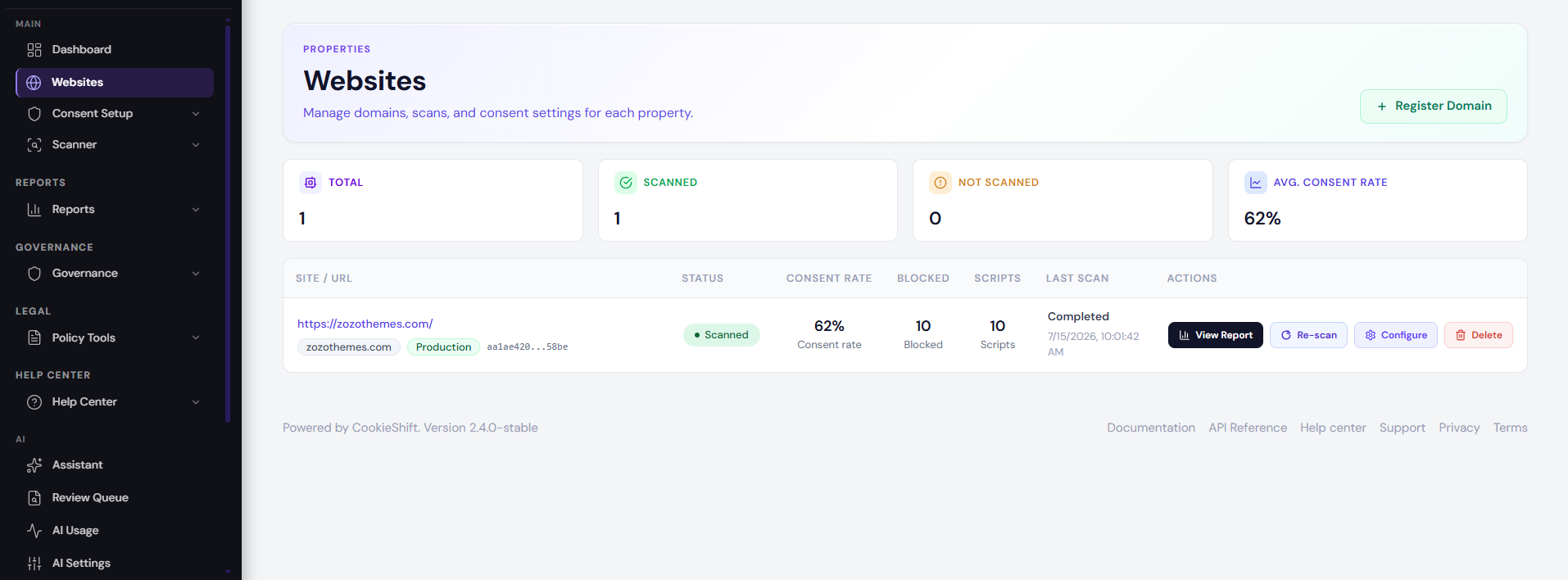
Websites is where you register and manage every domain (property) in your CookieShift workspace.
Websites list
Open Websites from the sidebar to see all properties tied to your account.
Each row typically shows:
- Domain — the site hostname you registered
- Consent rate — share of recorded decisions that accepted consent (when data exists)
- Scripts detected — count from analytics/script monitoring
- Scan status — whether a crawl has completed for this property
- Actions — open details, view latest report, or delete
Summary chips at the top show total sites, how many have completed scans, and average consent rate across scanned properties.
Add a website
- Click Add website (or go to Websites → New).
- Enter your domain (for example
shop.example.com). - Save.
CookieShift assigns a unique site ID used in your install snippet and API calls. You do not need to memorize it—Modules inserts it automatically when you copy the embed code.
Agency plan
On Agency, connecting a domain starts a guided setup:
- Discover crawlable pages (homepage, menus, footer, sitemaps, robots.txt, internal links, pagination) using the same discovery engine as the Scanner. This finds URLs only — it does not run a compliance scan.
- Set a Monthly Crawl Allocation from the Shared Monthly Crawl Pool (number field, slider, or + / −). You may allocate more than pages discovered to reserve growth capacity; only the remaining pool caps the value.
- Finish setup → open the Scanner
Other plans still go straight from Connect → Scanner. Change allocations later in Billing → Allocation Manager or Agency Management (/workspace/agency).
Website detail page
Click a domain to open its detail view. From here you can:
- See scan schedule and last run status
- Start or monitor scans
- Jump to Consent Setup, Scanner, or Compliance for this property
- Review connection status when linked from WordPress or Shopify
Property selector
The top-bar property selector sets the active site for the whole app. When you switch sites, pages like Scanner, Consent Setup, and AI tools reload data for the new selection.
Agency Monthly Crawl Allocation
On the Agency plan, each property has a Monthly Crawl Allocation — the maximum pages CookieShift may crawl on any scan for that site. Allocation is reserved capacity: unlimited scans reuse it without taking more pages from the shared pool each run.
Allocations come from the workspace Shared Monthly Crawl Pool. Manage them in Billing → Allocation Manager or Agency Management (/workspace/agency). Buy +10,000 Monthly Crawl Page packs through Stripe Checkout when you need a larger pool.
Delete a website
Use Delete on a row to remove a property permanently. You will be asked to confirm—this cannot be undone and removes scan history and configuration for that domain.
WordPress-connected sites
If you connected via the WordPress plugin, you may land on Websites with a notice that the site was registered automatically. Finish Consent Setup and confirm the install snippet (or plugin injection) is active on the live site.
See WordPress module.
Best practices
- One property per distinct domain (or subdomain strategy your legal team approves).
- Rescan after CMS or tag-manager changes so inventory stays accurate.
- Name conventions — use production domains in CookieShift; use staging only if you maintain separate consent policies there.